Workflows
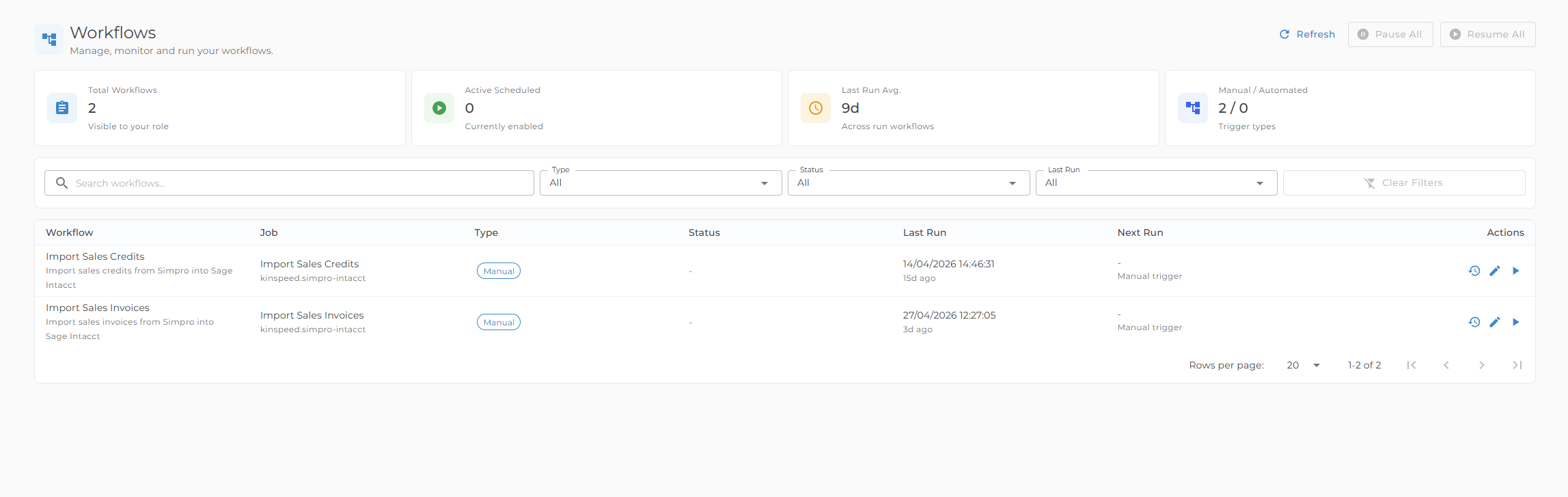
Workflows run your configured business processes. You can run them on demand, schedule them, review previous runs, and inspect logs.
Find workflows
- Search by workflow name or job name
- Filter by type, such as Manual or Automated
- Review Next Run and Last Run for scheduled workflows
- Open History or Logs from the workflow actions when you need run detail
- Open a workflow to edit its configuration where your role allows it
- Administrators can switch between published workflows and draft workflows
Run a workflow
- Open Workflows.
- Click Run Workflow.
- If the workflow is previewable, select the rows to process.
- Start the workflow.
- Review progress in the job log.
Some workflows wait for an available worker before previewing or running.
Only workflows that are enabled and allowed for your role are shown.
Draft and published workflows
New workflows created by administrators start as drafts. Drafts are used to configure a workflow before it becomes available to other users.
- Draft workflows are visible only to administrators.
- Draft workflows cannot be previewed, run manually, triggered externally, or scheduled.
- Publishing a draft makes it visible to allowed roles and enables normal run/schedule behavior.
- Existing workflows are treated as published.
Administrators can use the draft workflow list to return to unfinished workflow setup.
Previewable workflows
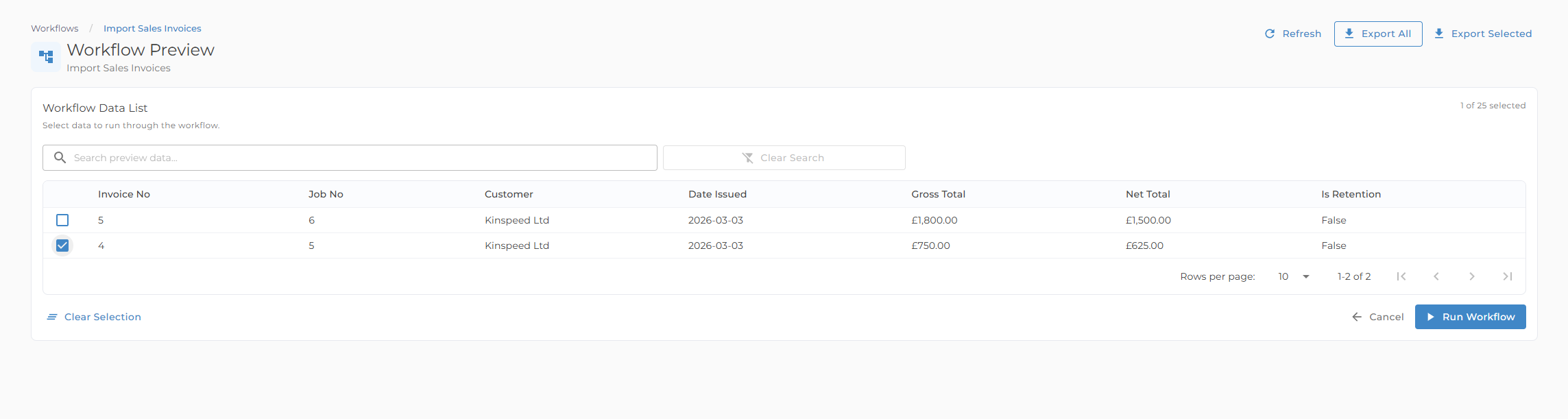
Previewable workflows show a data list before running:
- Search and filter the preview table
- Select up to the configured limit
- Export all or selected rows to CSV
- Run the selected rows
- Some workflows automatically hide records that have already been processed, so the preview only shows records still eligible for action
Workflow history
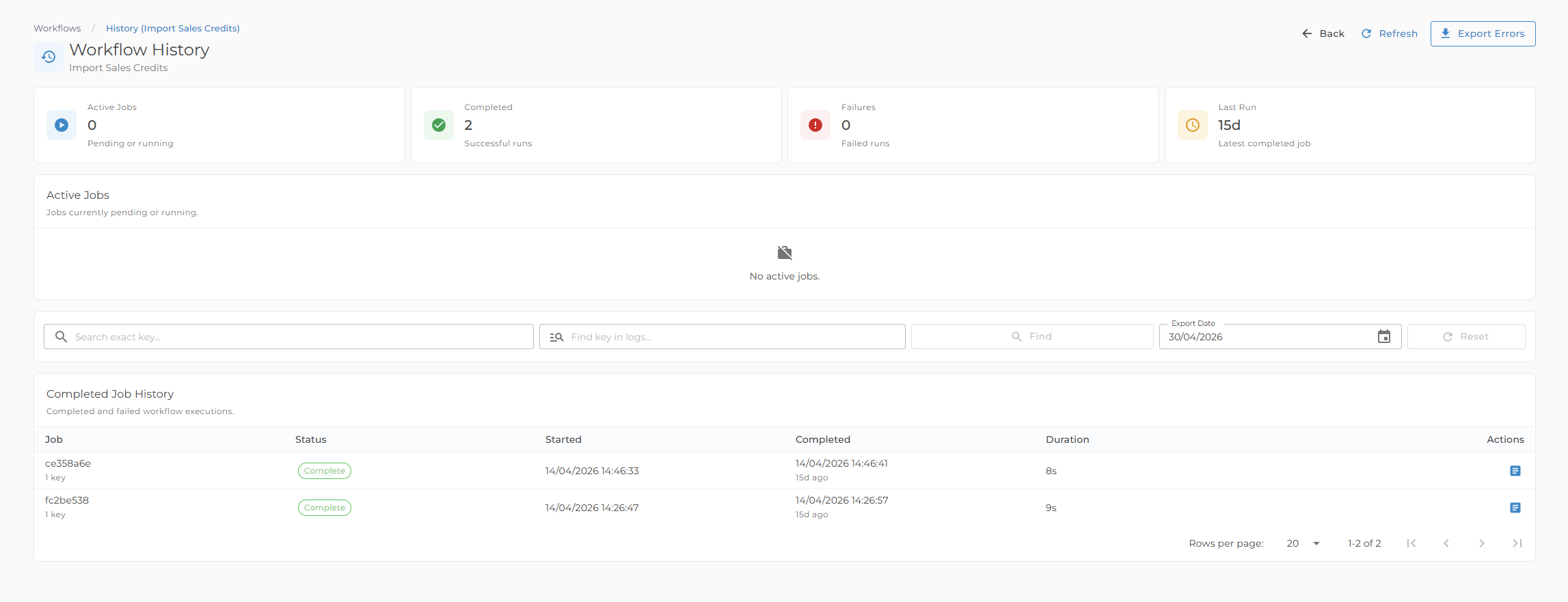
From the Workflows list, open History to see:
- Active jobs, such as Pending or Running
- Completed job history
- Search by key
- Find logs containing a key
- Export error logs by date
- Replay a completed or failed job where your access allows it
Job logs
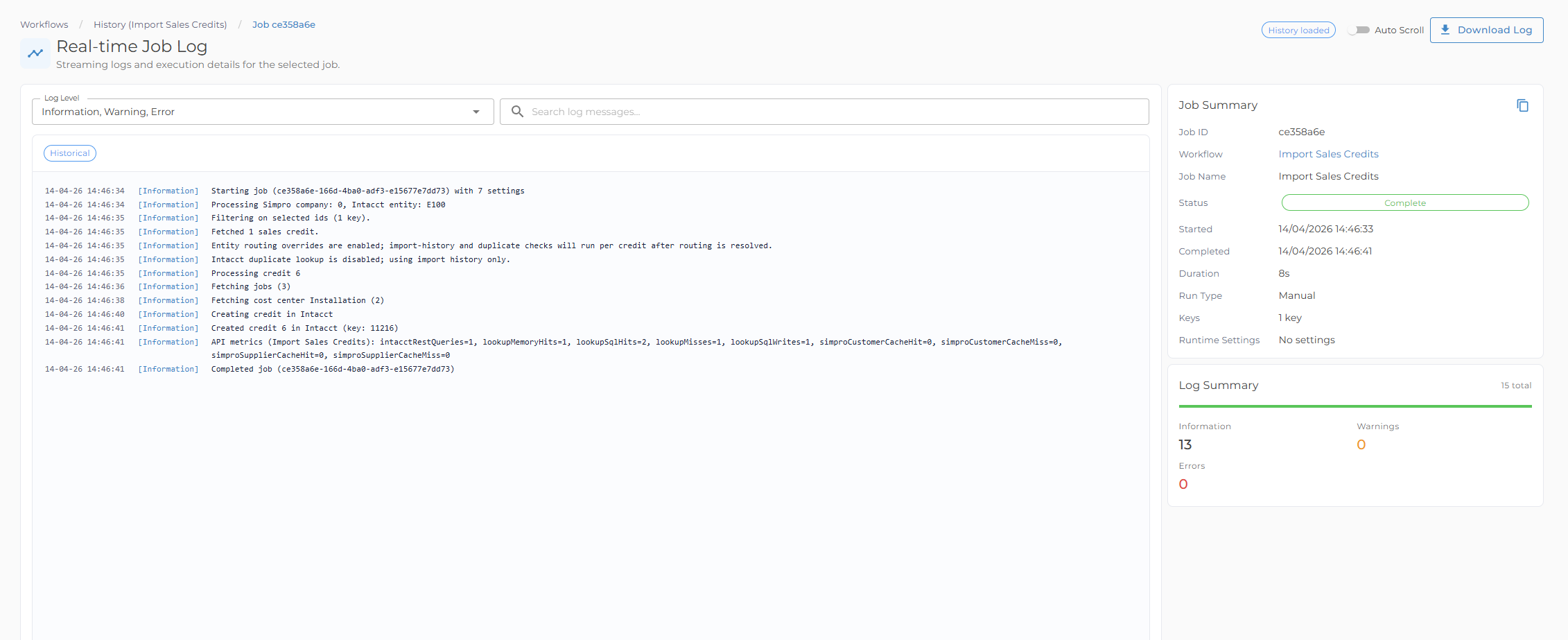
The Job Log page shows live and historical log entries for a run:
- Filter by log level
- Search in metadata
- Export filtered logs
- Replay a completed or failed run from the historical job log
Some technical log detail may be visible only to Kinspeed support or approved platform operators.
Replay a historical job
Replay lets you queue a new run from a completed or failed job. This is useful when the original records need to be processed again after reviewing the log or resolving an external issue.
To replay a job:
- Open Workflows.
- Open the workflow History.
- Open the completed or failed job log.
- Choose Replay Job.
- Confirm the replay.
The replayed job uses the original selected keys and runtime values from the historical run. It does not run immediately in the browser; it is added to the normal queue and waits for the same worker capacity, permissions, workflow status, and node availability as any other run.
Replay uses the current published workflow configuration. If the workflow has changed since the original run, the replay follows the current configuration rather than restoring an old copy of the workflow setup.
Replayed jobs are marked with a Replay indicator in history and include a link back to the source job. If Replay Job is not shown, the job may still be pending or running, the workflow may no longer be published, or your role may not allow replaying that workflow.
Workflow settings
Managers and administrators may be able to edit published workflow settings and schedules from the Workflows page where that access is enabled. Draft workflow setup remains administrator-only. If you need a workflow changed and do not have access, contact Kinspeed.
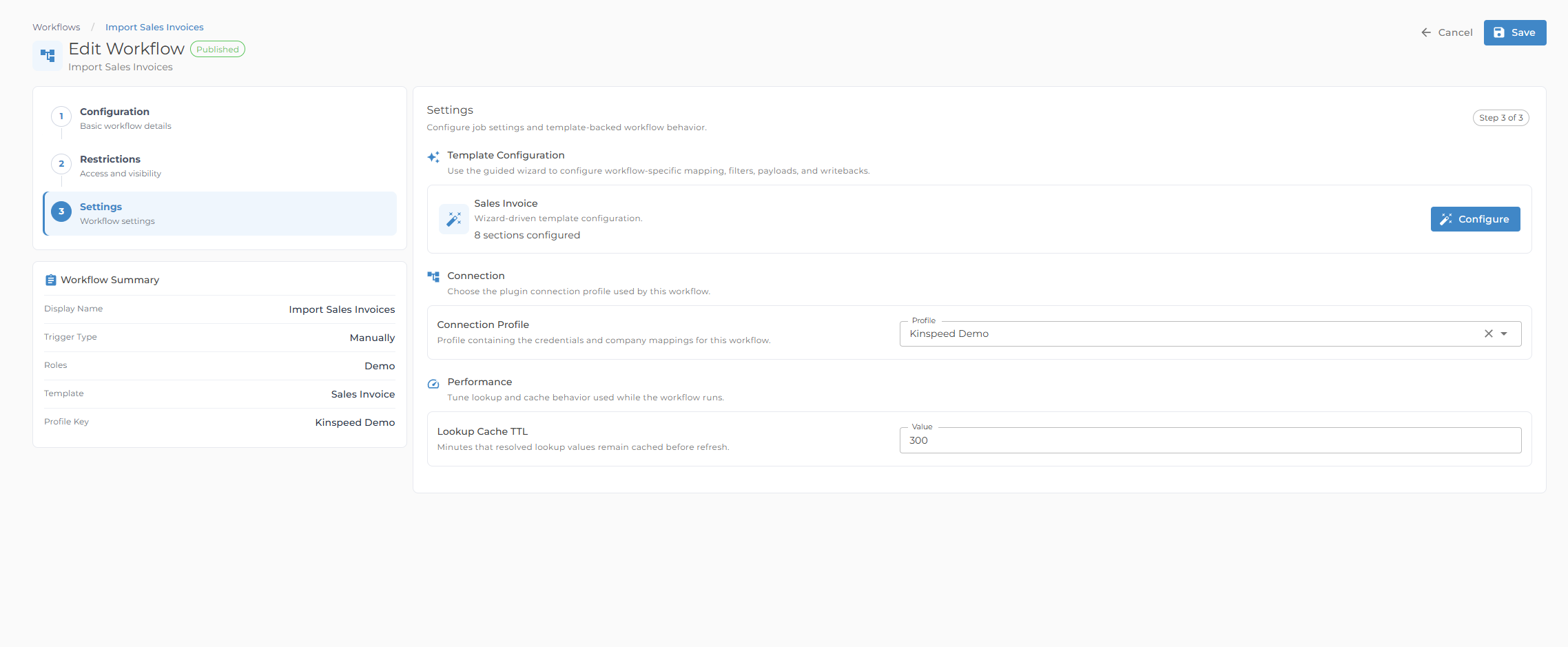
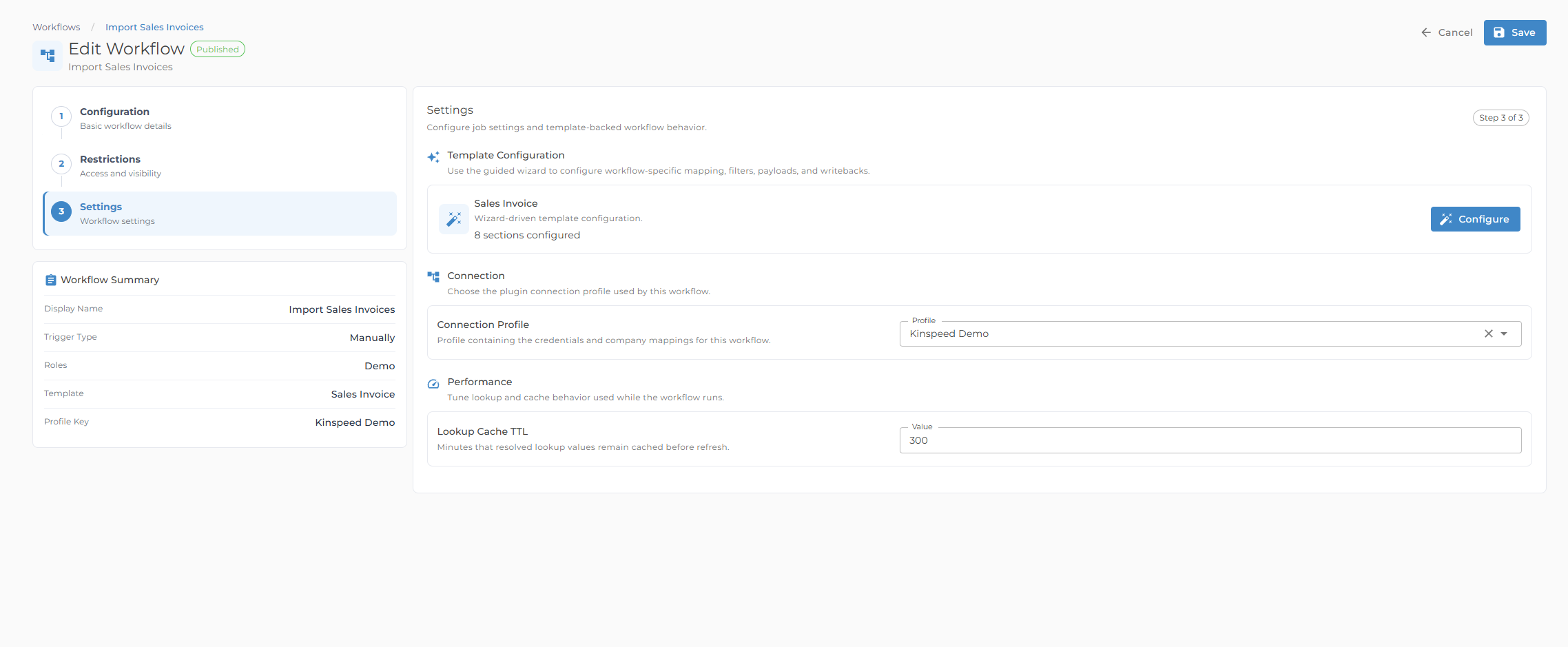
The workflow editor is a full-page setup experience with:
- Configuration for the workflow name and trigger type
- Restrictions for role-based visibility
- Settings for connection profiles, normal job settings, secrets, and template-backed configuration
- A left-side step list and workflow summary so you can see where you are in setup
- Save and publish actions where your role allows them
Scheduled workflows use local wall-clock time. For example, a daily schedule set to 12:00 AM runs at midnight in the configured scheduling timezone, including when clocks move forward or back.
Template configuration
Some workflows include template-driven configuration. Managers can adjust available template fields where access is granted.
Template-backed workflows may include:
- Guided steps for source selection, matching, payload, tax, writeback, and advanced settings
- Ordered match-mode controls instead of raw JSON
- Query filter builders with grouped conditions where the connector supports them
- Mapping rule drawers for editing lookup and mapping behavior
- Lookup scope controls where a connector supports top-level and entity-level lookup choices
- Writeback rule drawers for configuring custom-field updates
- Mapping dictionary drawers for key/value mappings
- Custom-field rule lists for values written during create/update or after a workflow succeeds