Reports
Reports summarize workflow and operational data. You can run reports on demand and export results.
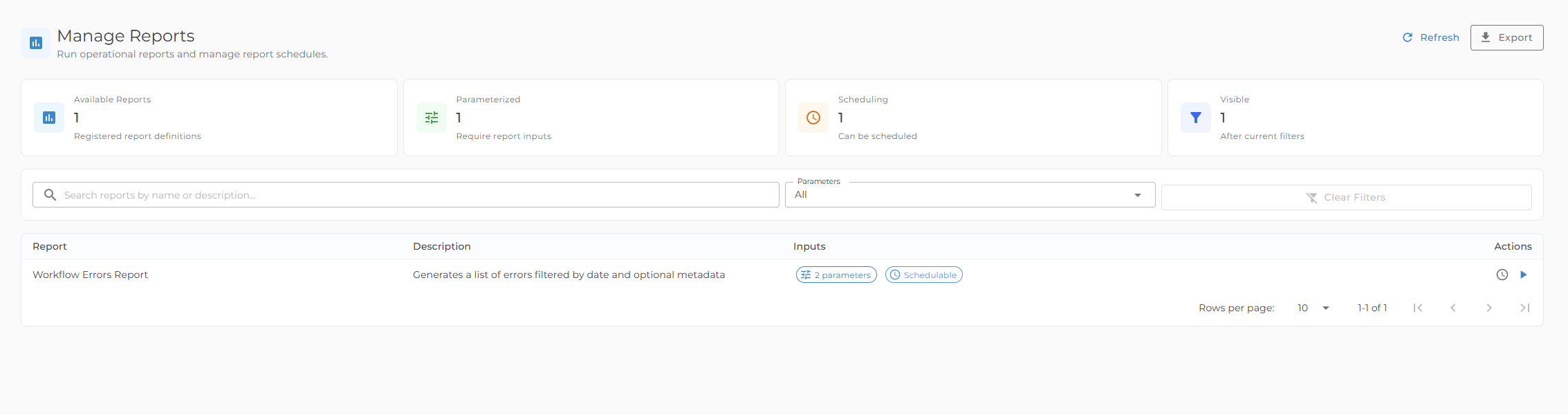
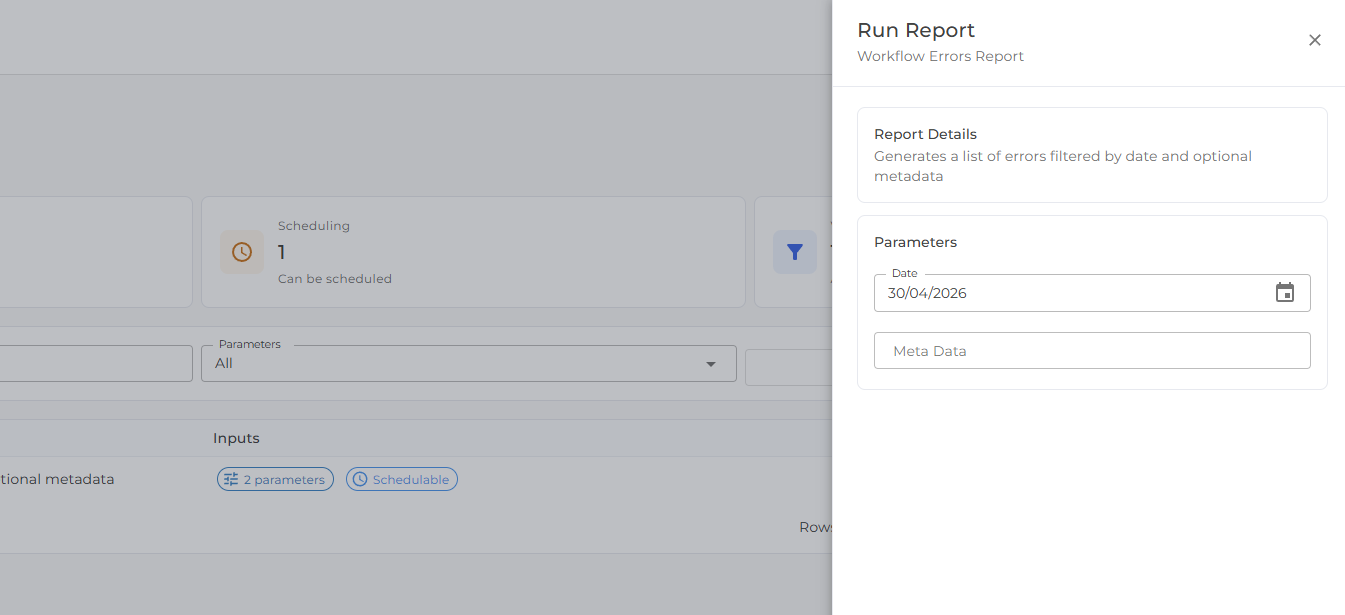
Run a report
- Open Reports.
- Click Run Report.
- Enter any required parameters.
- Click Run.
Only reports that are enabled and allowed for your role are shown.
Report results
Report results may contain table, summary, and text sections.
- Table sections support search and CSV export.
- Summary and text sections are read-only.
Report schedules
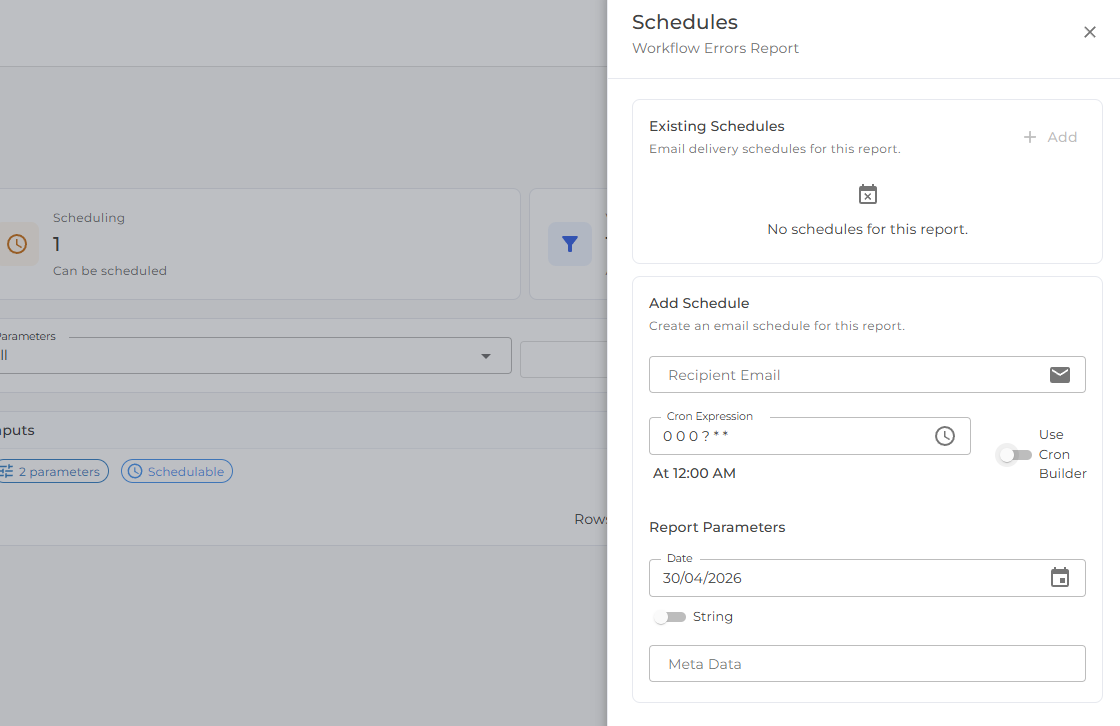
Managers can open Schedules to add or remove email schedules for a report.
Report schedules send configured report output by email according to the schedule set for that report.
Schedules use the same local wall-clock scheduling behavior as workflows. If a report is scheduled for 12:00 AM, it is sent at midnight in the configured scheduling timezone, even when clocks move forward or back.
The schedule drawer includes:
- Existing schedules for the report
- Recipient email
- Cron expression and a simple schedule builder with a readable preview
- Report parameters for the scheduled run
If you do not have access to a report or schedule, contact a Manager or Kinspeed.