Account and MFA
Use the account panel in the lower-left navigation area to manage your own profile and security settings.
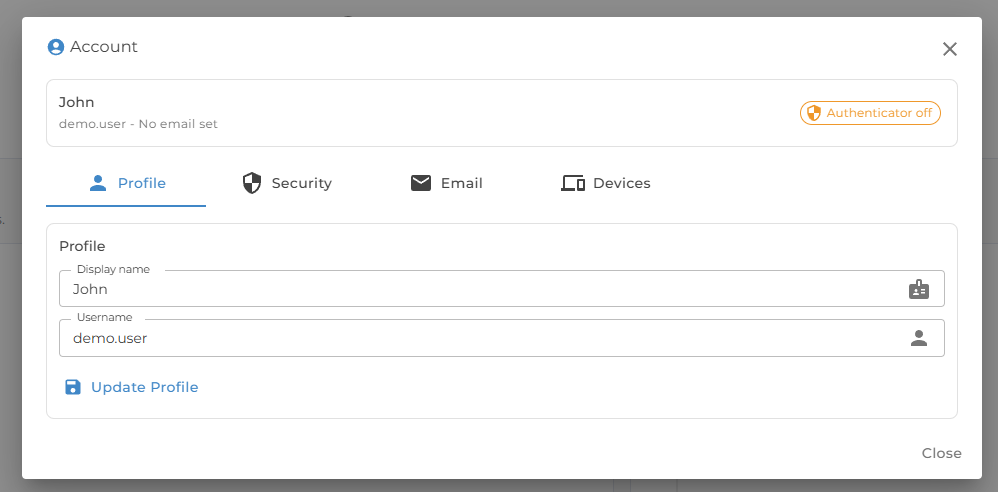
Profile
Update your display name and review your username. Your username is used for sign-in and may be managed by your organization.
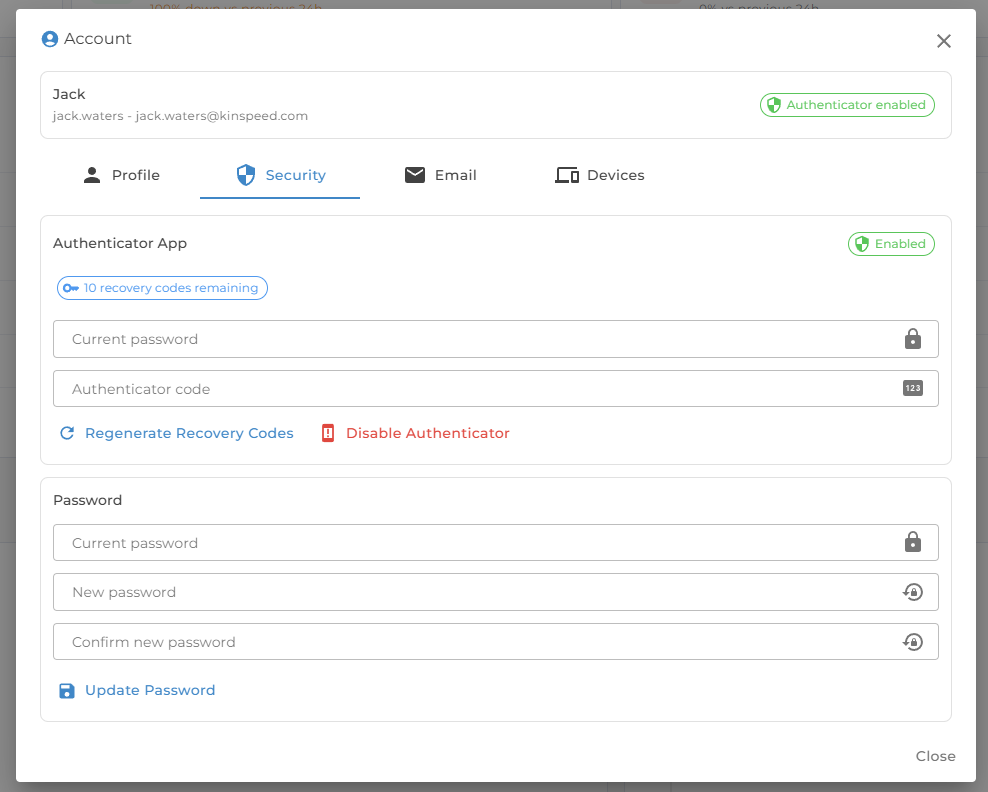
Password
Change your password from the Security tab. Password changes refresh your current session and invalidate older sessions in other browsers or devices.
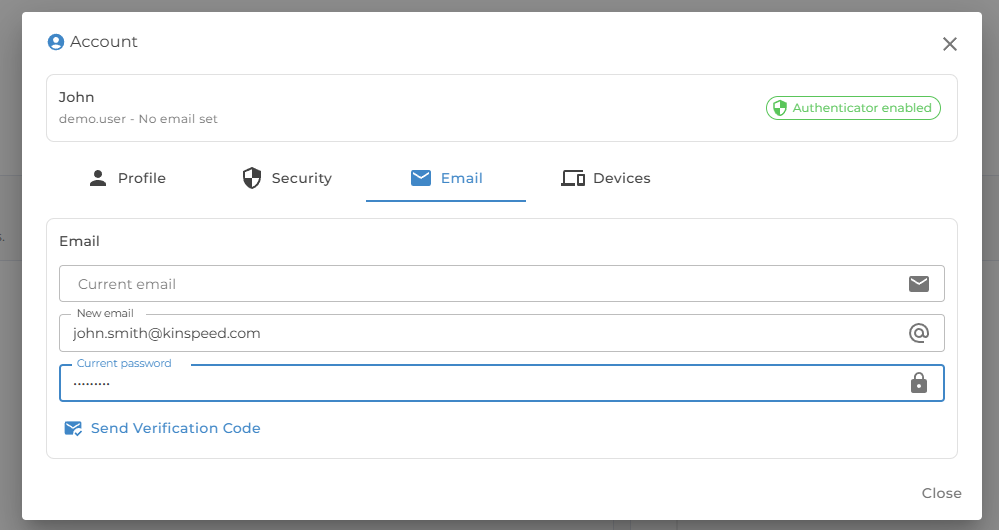
Email
Add or change your email address. Non-empty email changes require your current password and a one-time verification code.
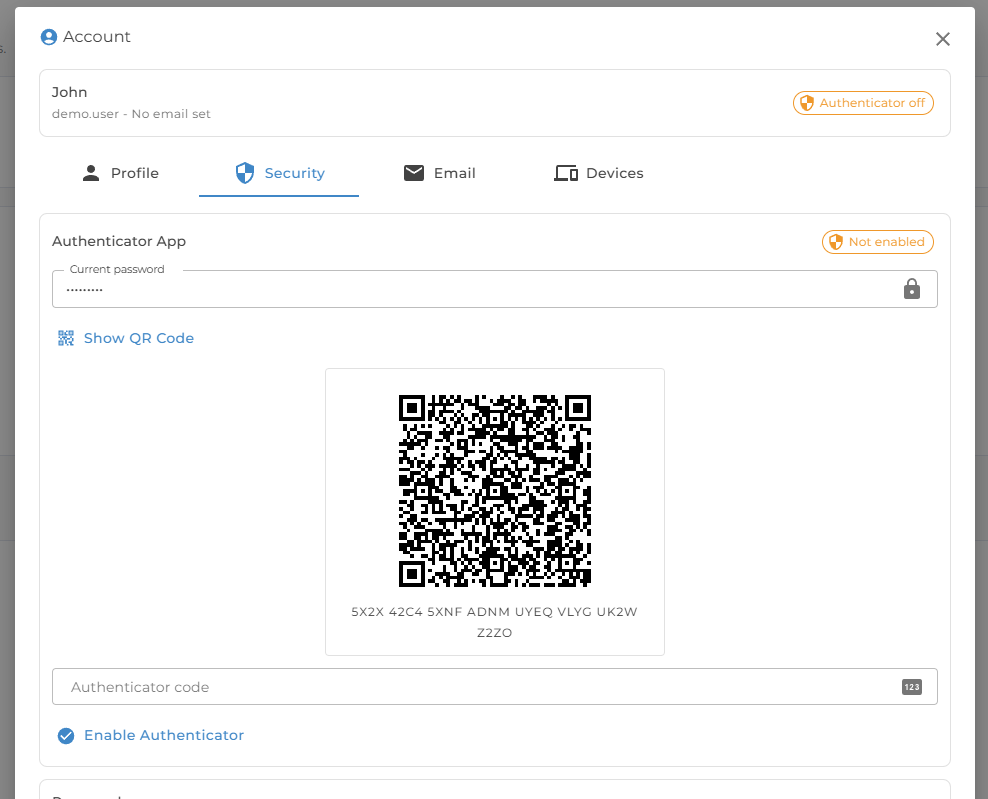
Authenticator app
Authenticator app MFA adds an extra sign-in step.
To enable it:
- Open Account.
- Open the Security tab.
- Enter your current password and show the QR code.
- Scan the QR code with your authenticator app.
- Enter the code from the app to confirm setup.
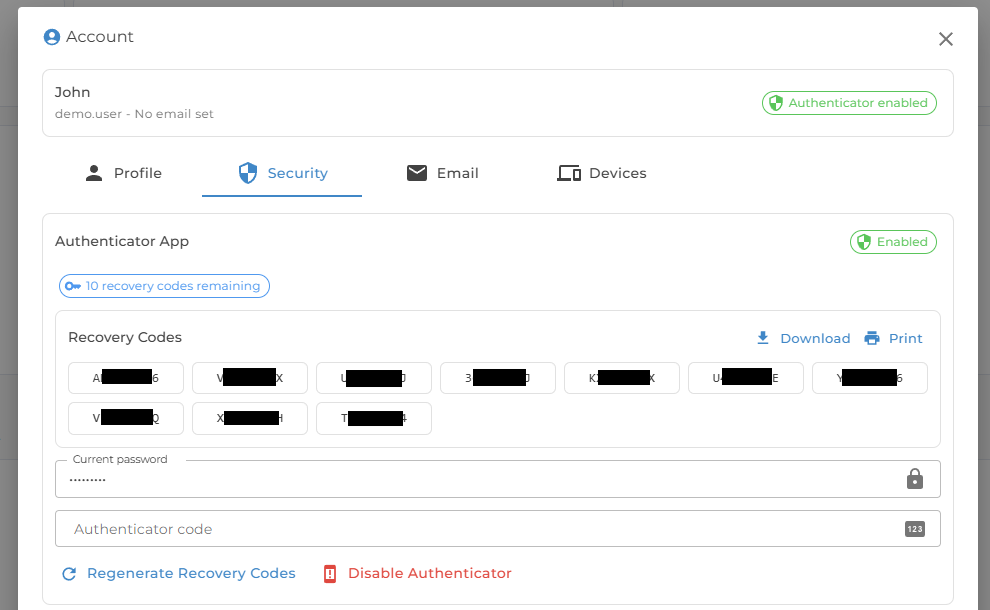
- Store the recovery codes somewhere private.
Recovery codes
Recovery codes are one-time backup codes for authenticator app sign-in. They are shown when authenticator MFA is enabled or when codes are regenerated.
Store recovery codes securely. If you run low, regenerate them from the Security tab.
Trusted devices
The Devices tab lists browsers or devices that have been trusted during MFA sign-in. You can revoke a single device or revoke all trusted devices.
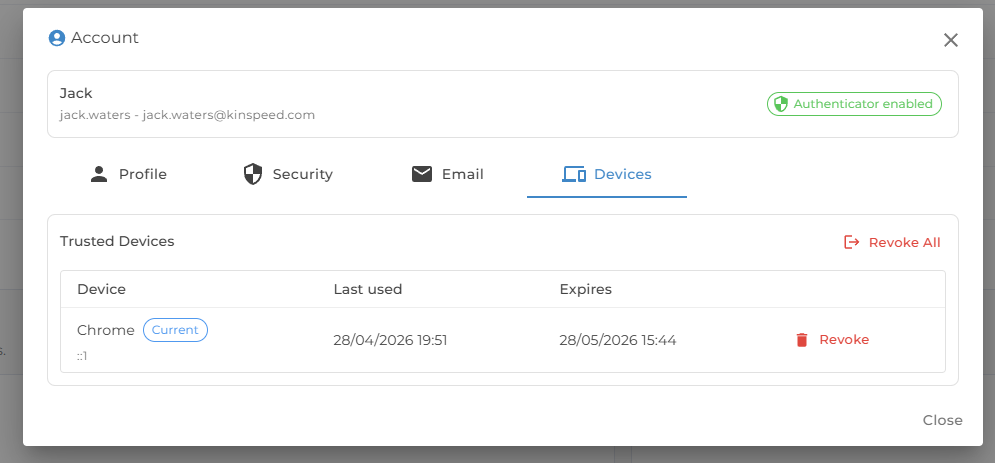
Revoke trusted devices if you lose a laptop, change browser profile, or no longer recognize a listed device.