Getting Started
Sign in
- Open your customer Connect URL.
- Enter your Connect username and password.
- Complete any required verification step, such as an email code or authenticator app code.
- Click Sign In.
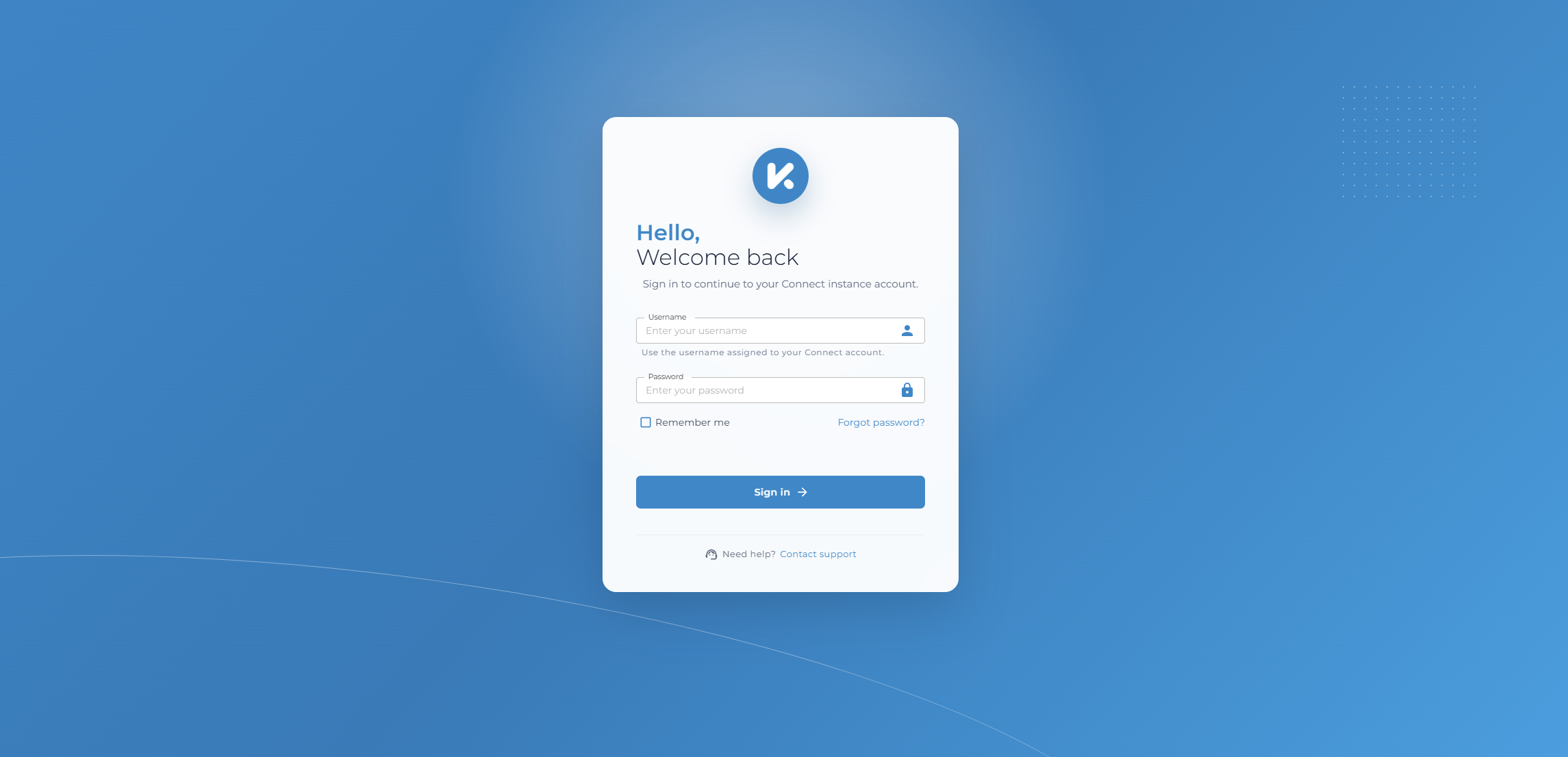
Your username is assigned to your Connect account. If you are unsure which username to use, contact your Manager or Kinspeed support.
First-time checklist
- Confirm you are using the correct customer Connect URL.
- Make sure your display name and email address are correct in Account.
- Set up authenticator app MFA if your organization requires it.
- Save recovery codes somewhere private if authenticator app MFA is enabled.
- Check that the pages and workflows you expect are visible.
Password reset
If your account has a confirmed email address and email delivery is configured, use Forgot password? on the sign-in page.
Password reset links expire and can only be used once.
MFA verification
Depending on your account setup, you may be asked for:
- An email verification code
- An authenticator app code
- A one-time recovery code if you cannot access your authenticator app
If you trust the browser during MFA sign-in, Connect can remember that browser for the configured trusted-device period. You can review or revoke trusted devices from Account.
Find your way around
After signing in, use the left navigation menu to move between Dashboard, Workflows, Reports, Nodes, and any Manager tools available to your role.
Sign out
Use the account area to sign out when you are finished, especially on a shared device.
If your permissions change
Your current session is refreshed automatically after some account changes. If your visible menu does not match your expected access, sign out and sign back in.